Generally I use docker for self hosting the UniFi Network Application and now the UniFi OS Server (well, podman for that one but same difference). However we do have a location that has it installed on a Windows Server VM. This creates a challenge because application does not support running as a service on Windows Server, so when a reboot happens the application does not start up automatically. I needed some way to monitor and get notifications if this occured; Enter Zabbix!
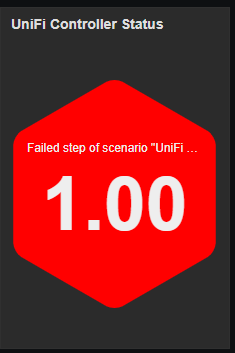
Using a "Web scenario" we can set up a monitor on the UniFi webpage to detect if it is up or not. Then we set up a trigger on whether the one step of that scenario fails (1) or passes (0).
Set Up the Web Scenario
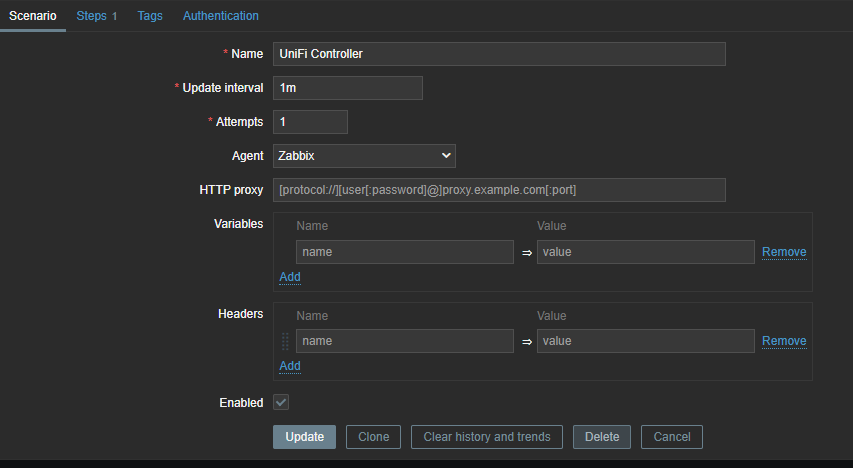
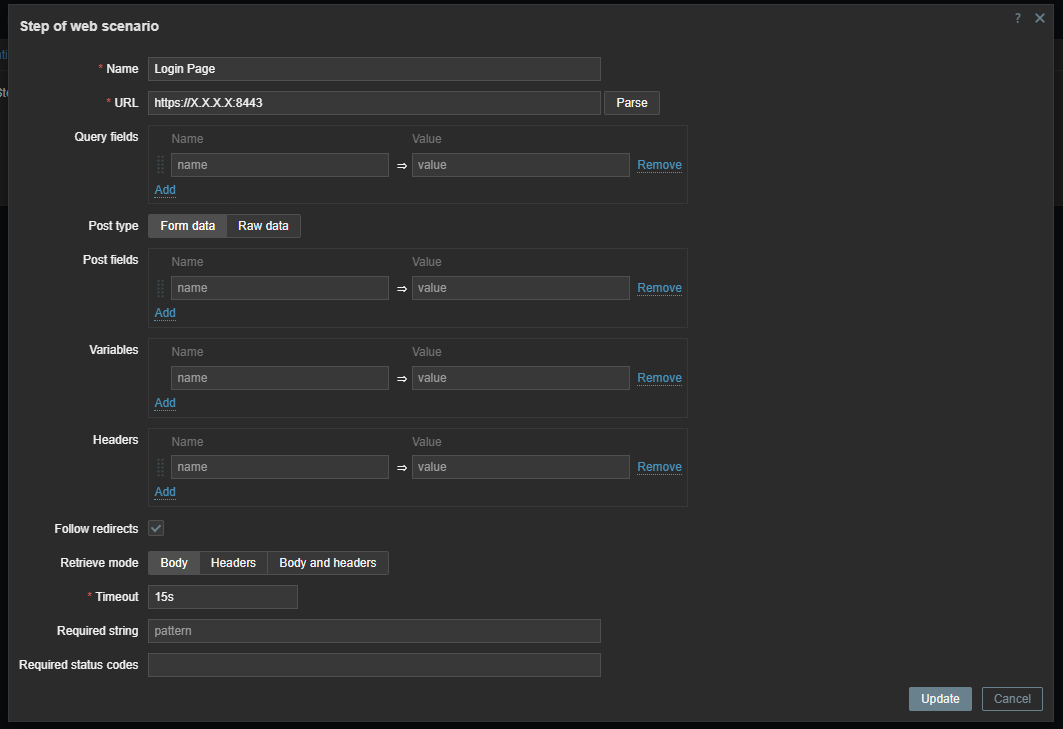
First we need to set up the initial web scenario. Under Monitoring > Hosts, click on the host containing the app and choose Web. On the top right choose "Create web scenario". Fill out the information; it is pretty straight forward. Go to "Steps" and now we will add the UniFi login page. We will not need any credentials since we just need to see if the login page is up or not.

Creating the Trigger
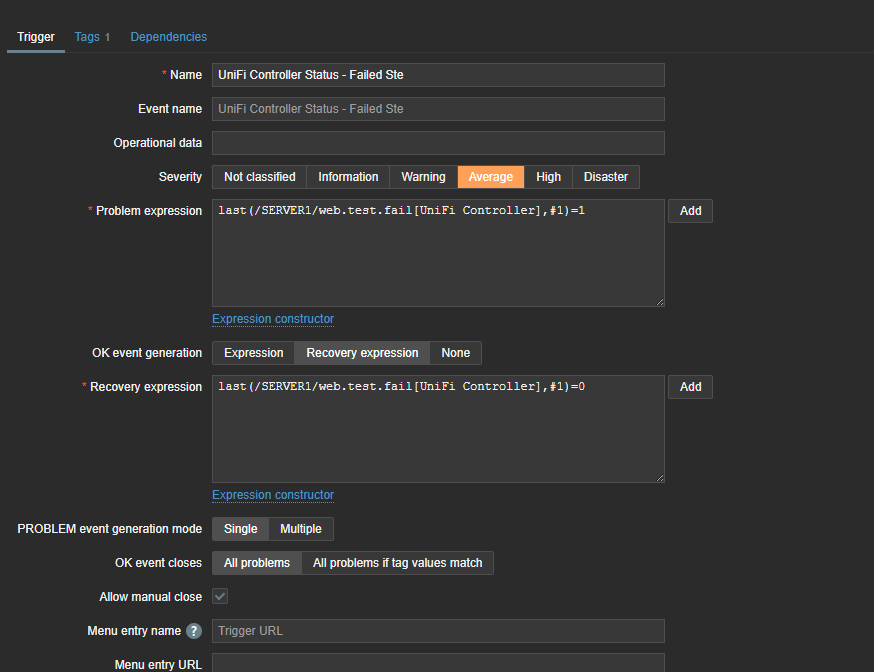
Under Triggers, press the "Create Trigger" button. We can name it whatever we want, but for Problem expression and Recovery expression we want the below, respectively. Expression breakdown: Replace HOST with the name of the host, and UniFi Controller with whatever you named the Web scenario. The #1 will mark it as failed if it the Step fails once, so change that if you want to give it more chances to recover on its own. The =1 is for which step it failed on. 0 is for no failures so we will make that the Recovery expression, and we only have one Step so we put 1 as the Problem expression.
Problem: last(/HOST/web.test.fail[UniFi Controller],#1)=1
Recovery: last(/HOST/web.test.fail[UniFi Controller],#1)=0
Create the Dashboard Monitor
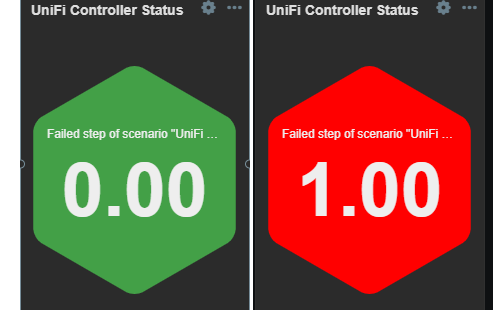
Optionally, we can set up a widget in the dashboard to tell us if the step has failed or it is up. Navigate to the dashboard to add the widget. For Type I prefer Honeycomb but Item card or Item value should work as well. The important fields are adding the Host, for Item pattern add "Failed step of scenario..." Under Advanced configuration I like to change the Text to {ITEM.NAME}.
Still under Advanced, to differenciate whether the service is up or failed we can make the background color green and then add a Threshold of 1 and change the Threshold color to red. This will make the default color of the widget green, so when all Steps are working (0) it is green, if step 1 has failed (1) it will turn red.